Opus 1: The new way to interact with your Haptique is Live

Introducing OPUS 1 – The Upcoming New Haptique UI

Hi everyone :waving_hand:

We’re excited to share the introduction video for our upcoming new UI, called OPUS 1.

Over the past months, we’ve worked day in and night out to solve the current navigation challenges in Haptique. Our goal with OPUS 1 is simple:

  • Make Haptique easier
  • Make it simpler
  • Make it feel natural to use

OPUS 1 is a complete rethink of how you move, tap, and control things on Haptique — with cleaner layouts, clearer flows, and faster access to what matters most.

:rocket: The OPUS 1 update is rolling out this week.

:clapper_board: Watch the OPUS 1 introduction video here:

We’d love your feedback:

  • What feels better?
  • What still feels confusing?
  • What would you improve?

Launching in the coming week, it will be an Optional UI on Haptique to be enabled via settings. You can switch between current and Opus easily.

This is just the beginning of OPUS. More iterations and improvements are coming soon.

6 Likes

Looks nice and user friendly.

In consider buying.
Just wondering, is there also web access to configure through a browser?
I usually find this easier to configure my devices.

At least for now, this isn’t possible with a browser. You’ll need either the Haptique Config app for Android or the Haptique Config app for iOS/MacOS.

According to the manufacturer, it’s possible that some configurations, for example for IP devices, will be configurable via a browser in the near future.

The OPUS 1 Update goes live now. Just press sync on your Haptique and you have it.

Enable via Settings. We will also publish a pop-up once the config app is approved on the App Store. Opus 1 can be tested now.

Check the updated user guide section describing OPUS 1 - Haptique® Support - How to Guides

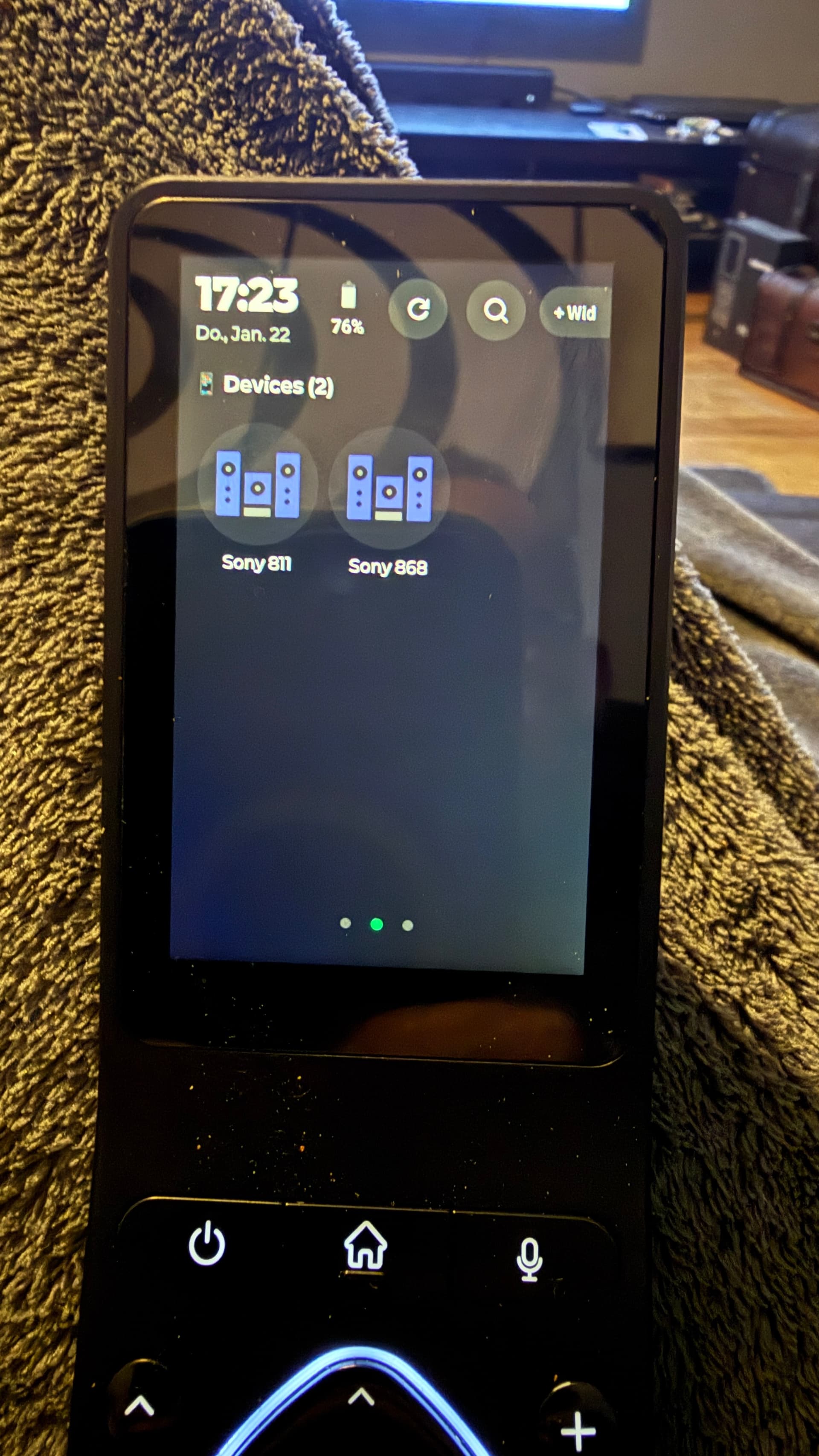
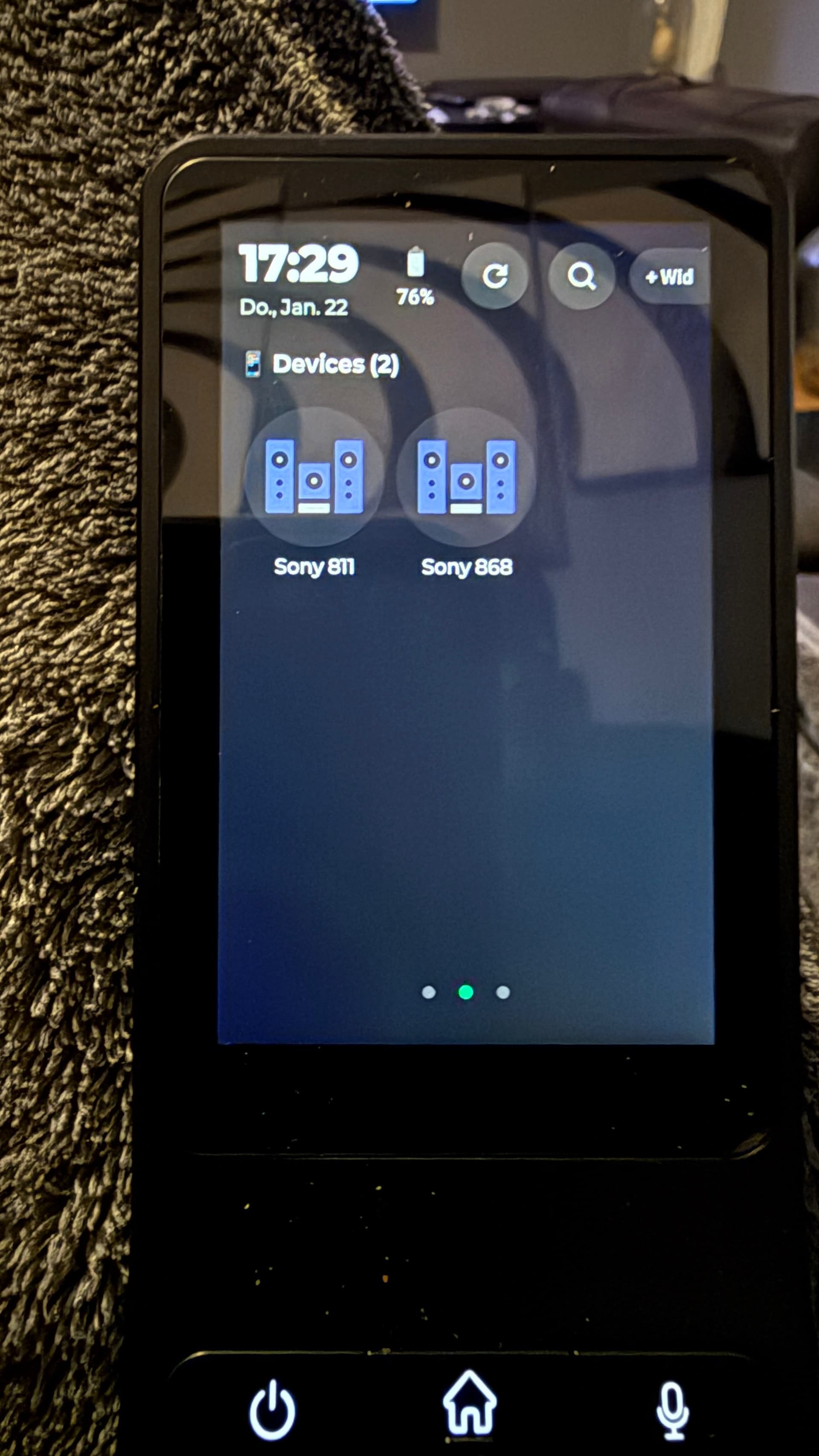
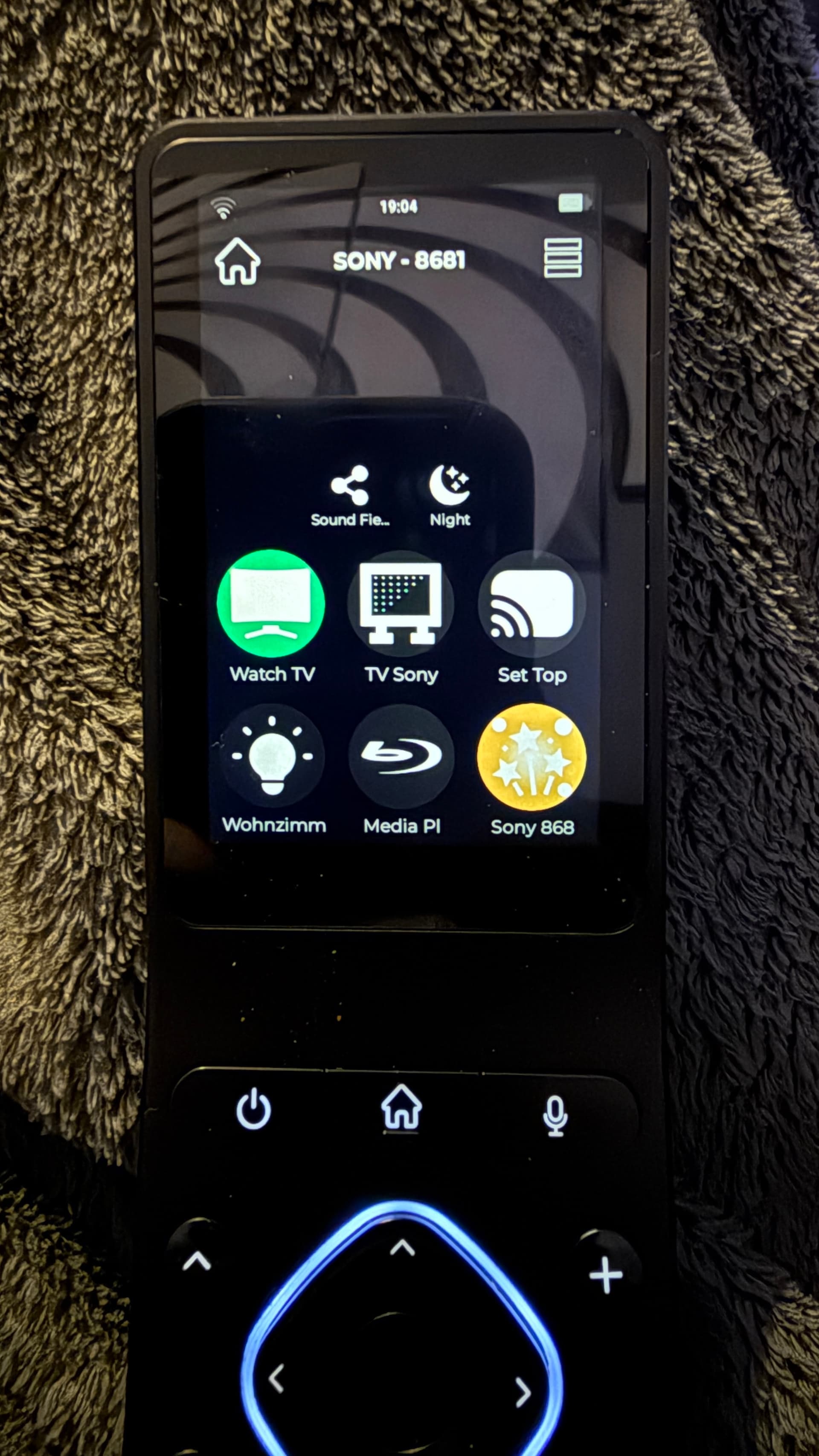
After the update I only find two devices where are the others ?


And in my settings I can no longer switch to the old UI because something is wrong here.

And now I no longer have a synchronization button, how am I supposed to set up everything here now?
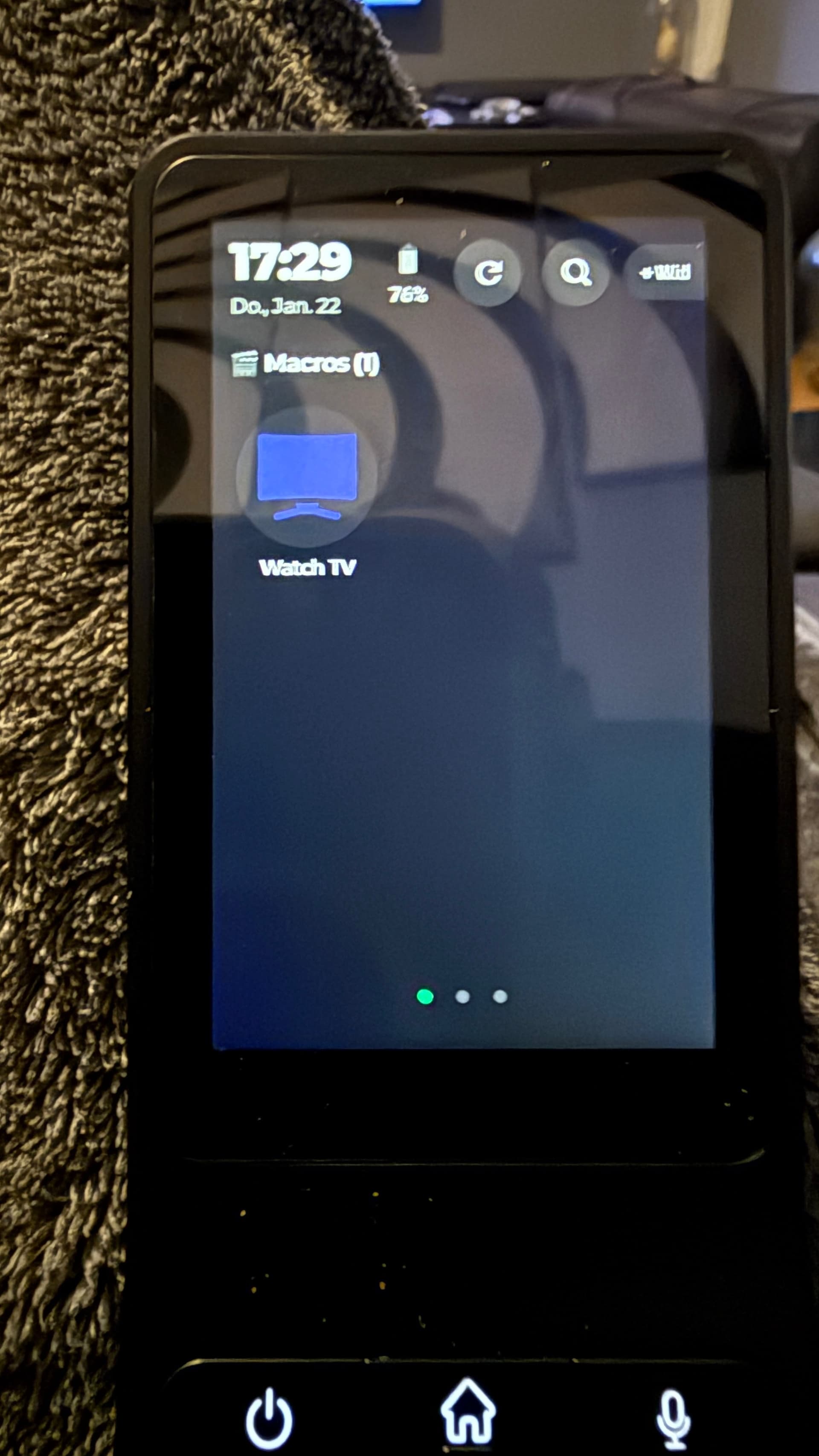
Page1:

Page2:

Page3:

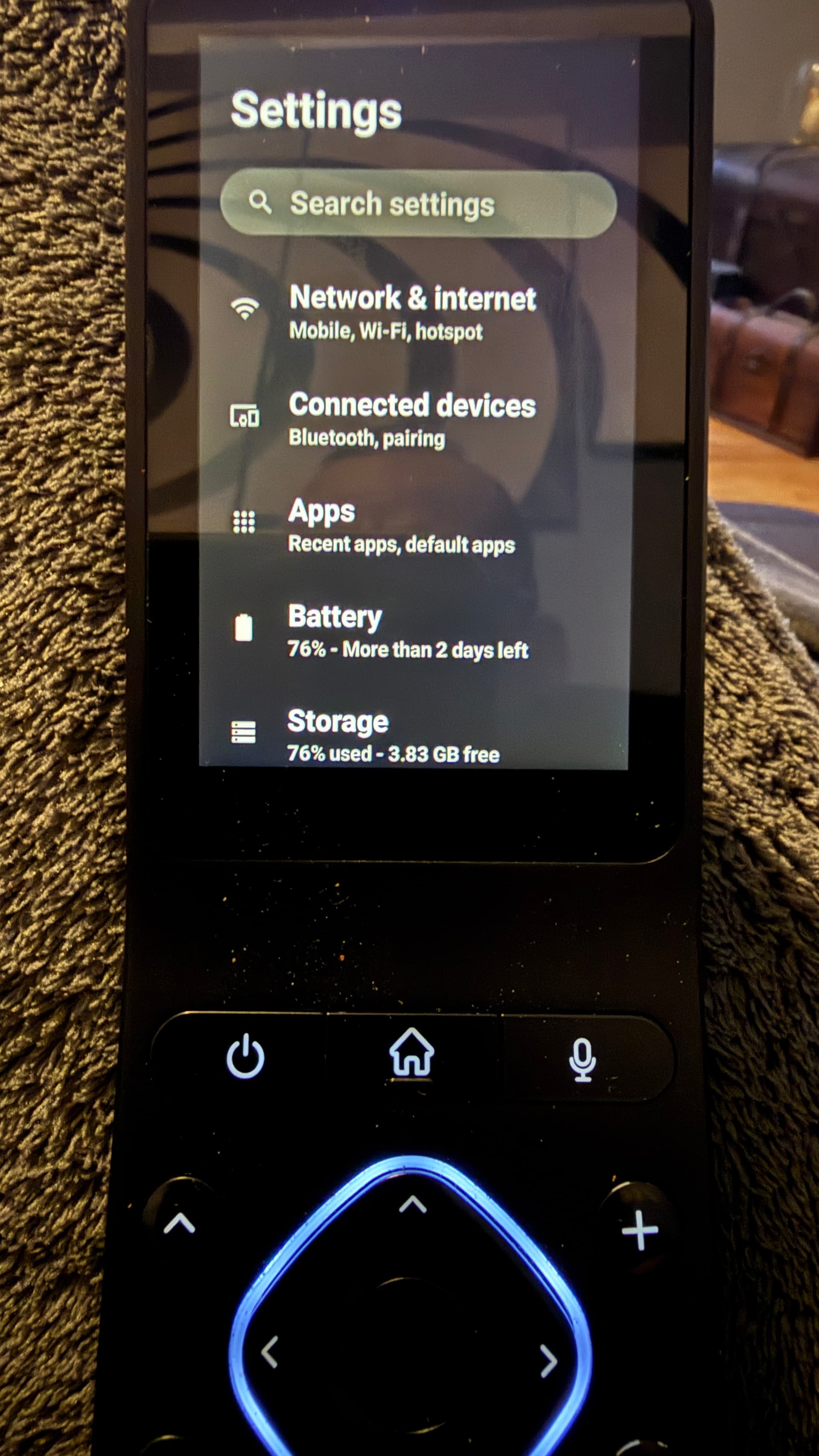
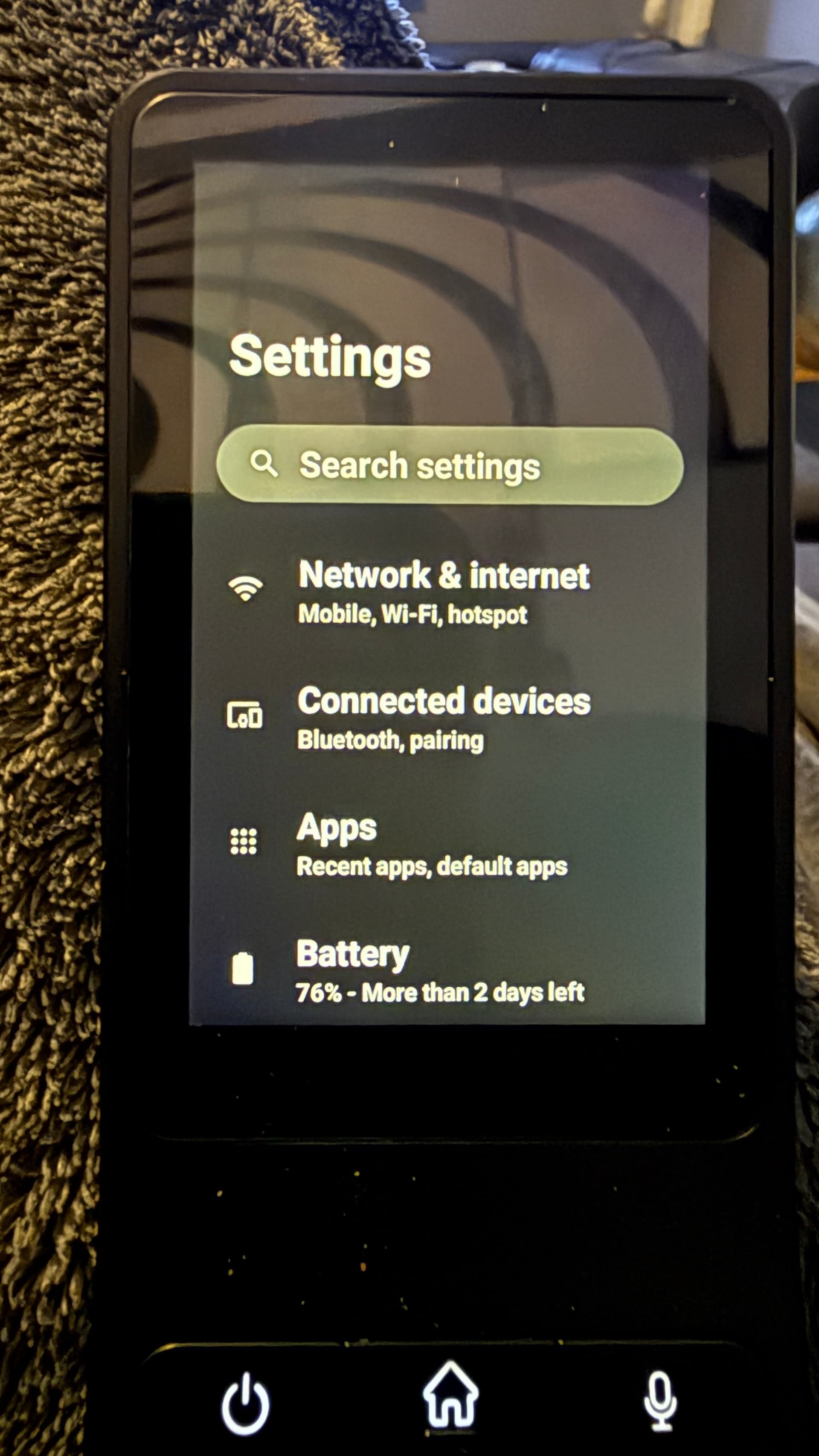
Settings:

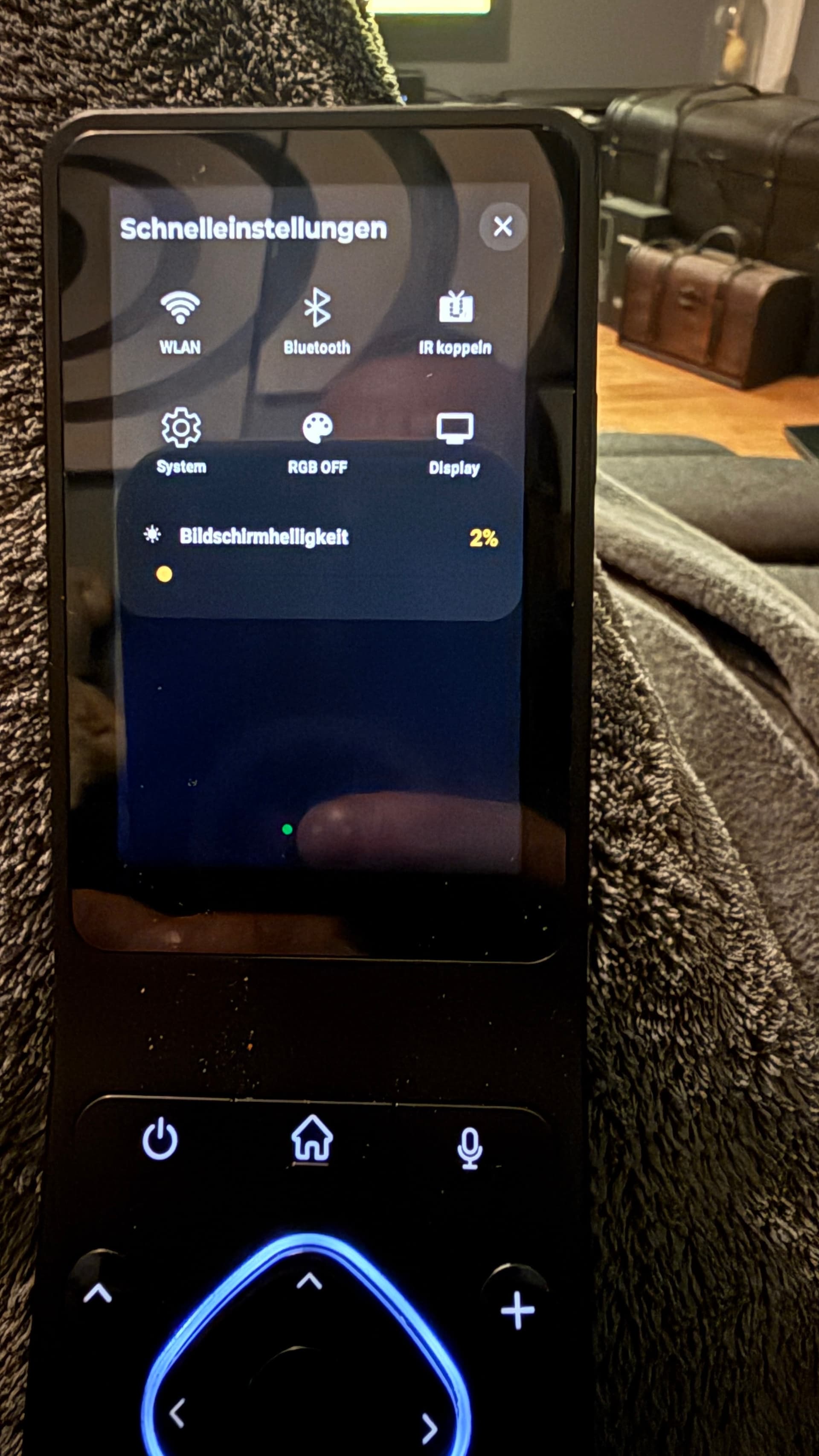
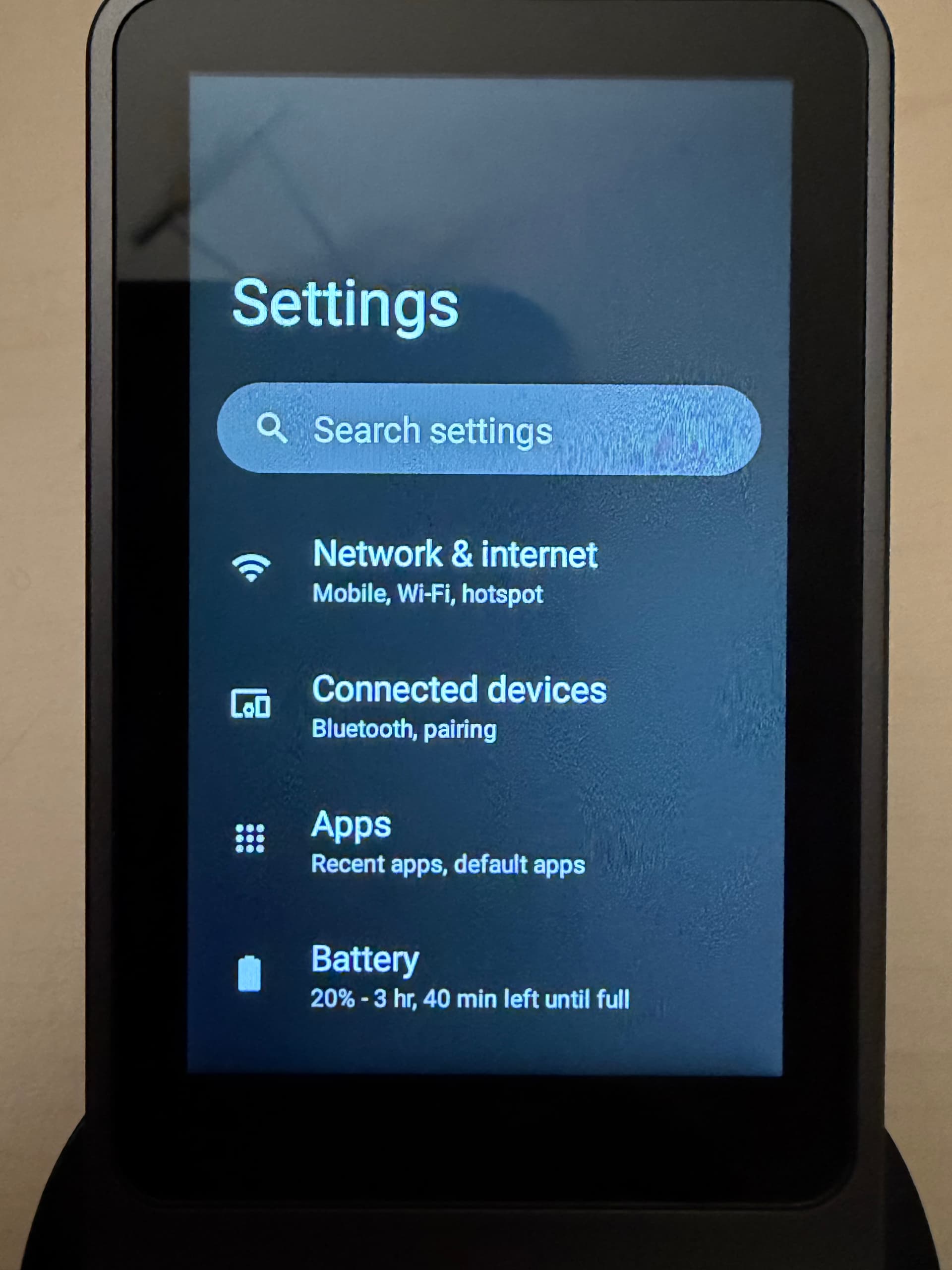
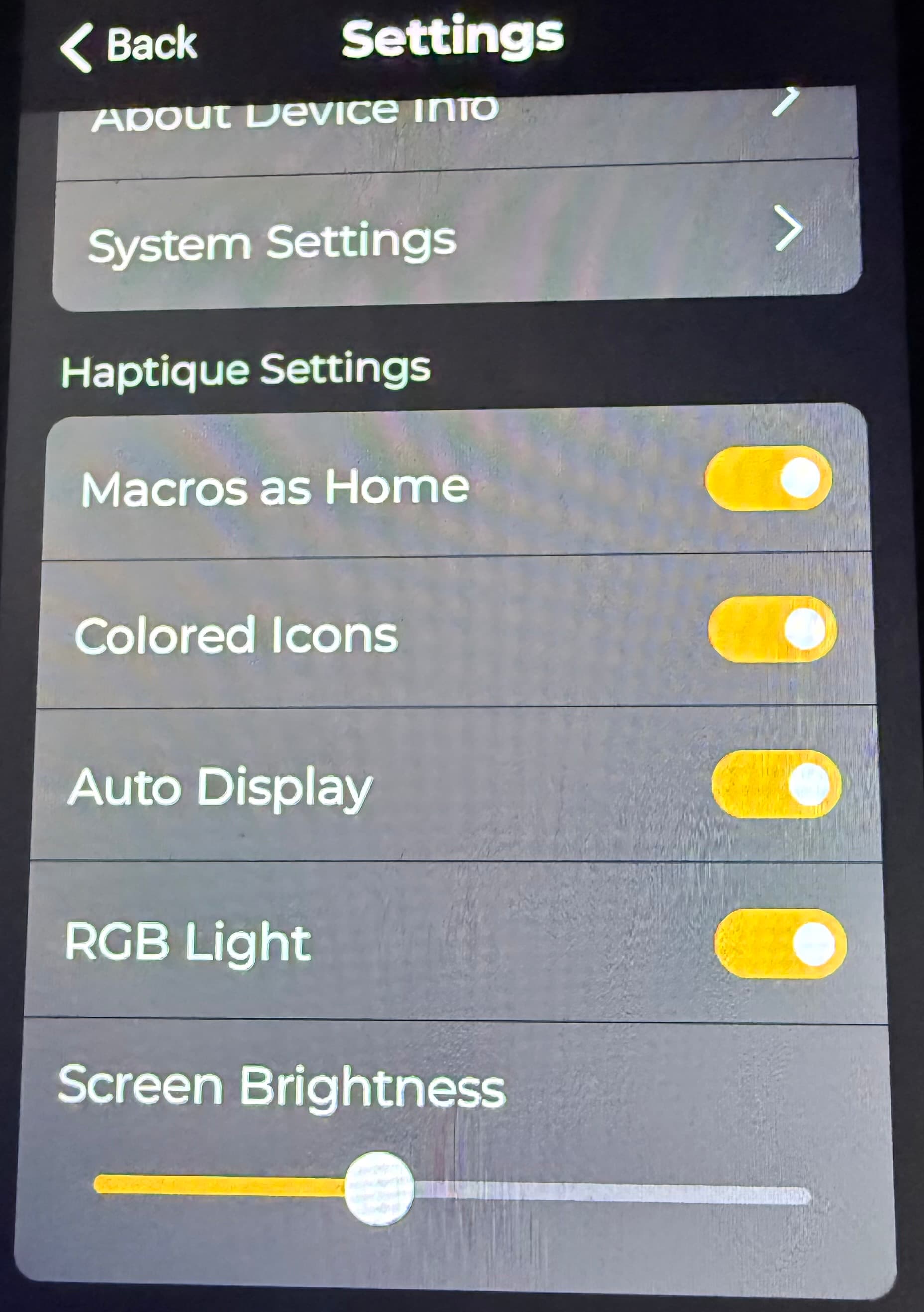
You have to swipe from top to bottom to get to the new setting and also to switch back to the old UI system maybe someone should have mentioned it

Despite everything, I only have two devices in my new UI.
And of my three macros, only one is displayed in the new UI. In my old UI I still had two quick keys

Are they no longer available in the new UI ?

  1. After installing the new version, it’s not possible to revert to the previous UI. There is no “Haptique Settings” option. The visible “Settings” option leads to the system settings.


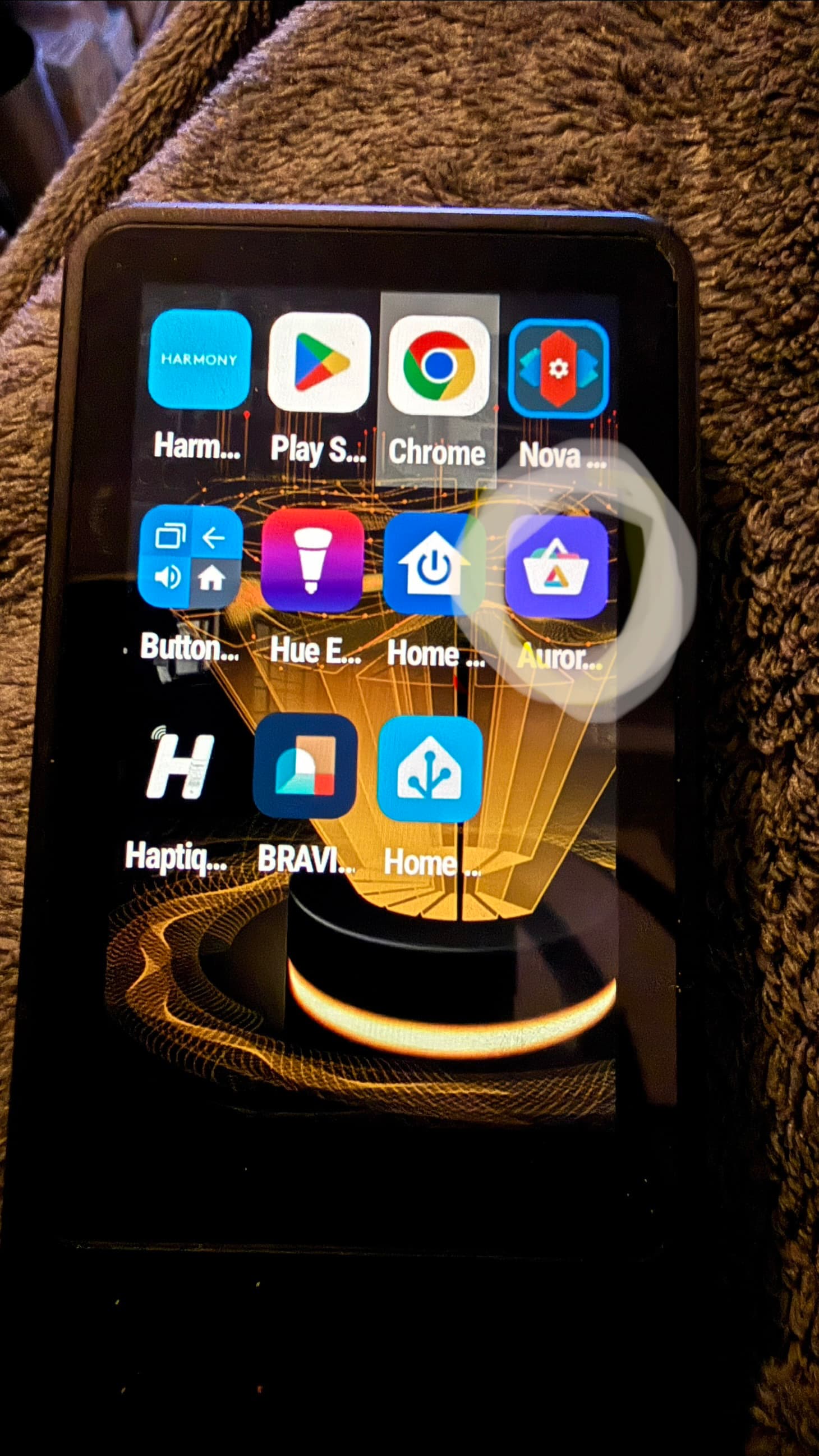
  2. How can I install any apps from the Google store? There is no Google Play app or any other store available.

You have to swipe from top to bottom.

You need to install the Aurora Store.

How to install Aurora??

Here is my feedback:

  • Custom IR commands that work with the physical buttons do not work on the touchscreen.
  • There is no function to rename the buttons.
  • Light power controls are not properly integrated.
  • Switching macros should only turn on the devices that are off and turn off the devices that are not needed.
  • Turning off a macro should also be possible on the touchscreen.
  • Users should be able to create and upload their own icons.
1 Like

Not seeing it yet. Wondering if it was pulled for repair.

We added a way to enable/disable devices. Wait for the config app update to arrive. You will have favourite device and Macro to be shown here.

Settings>Installed Apps

Sync the Haptique. It is live only.

We will test the issue with custom IR commands. Renaming feature will be coming in the next updates.

What do you mean by Switching Macros? To turn Off Macro, click on three dot. We already posted several screen shots on the user guide- Haptique® Support - How to Guides
Custom icons will follow.

Have done that numerous times. Also restarted it multiple times. Nothing.

Update: I just reset my device and now its installing the Opus update.

Ok, I need this because I have no page with devices. Only macros and apps. That said, the macros work great with the new ui and single tap.

1 Like

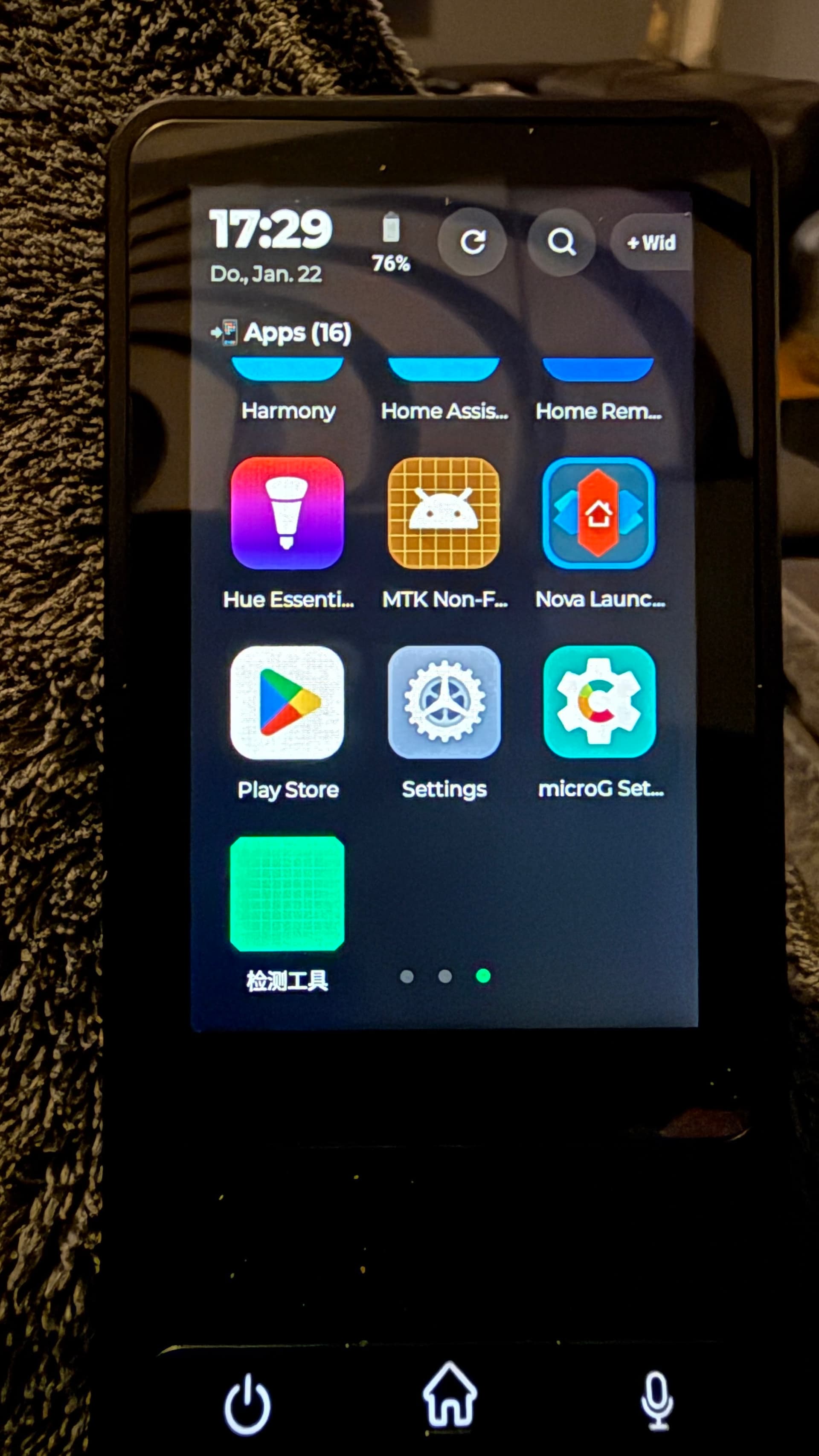
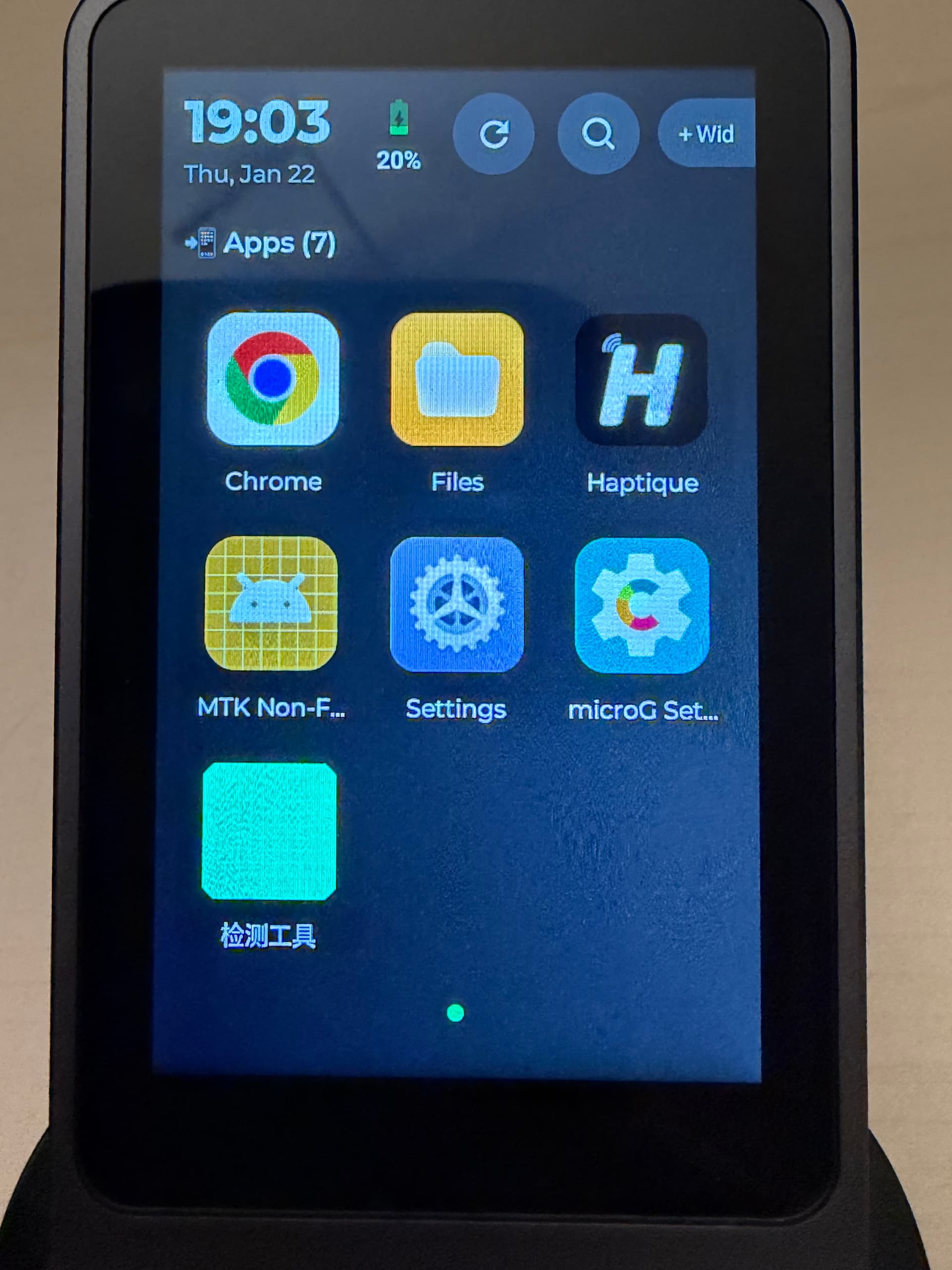
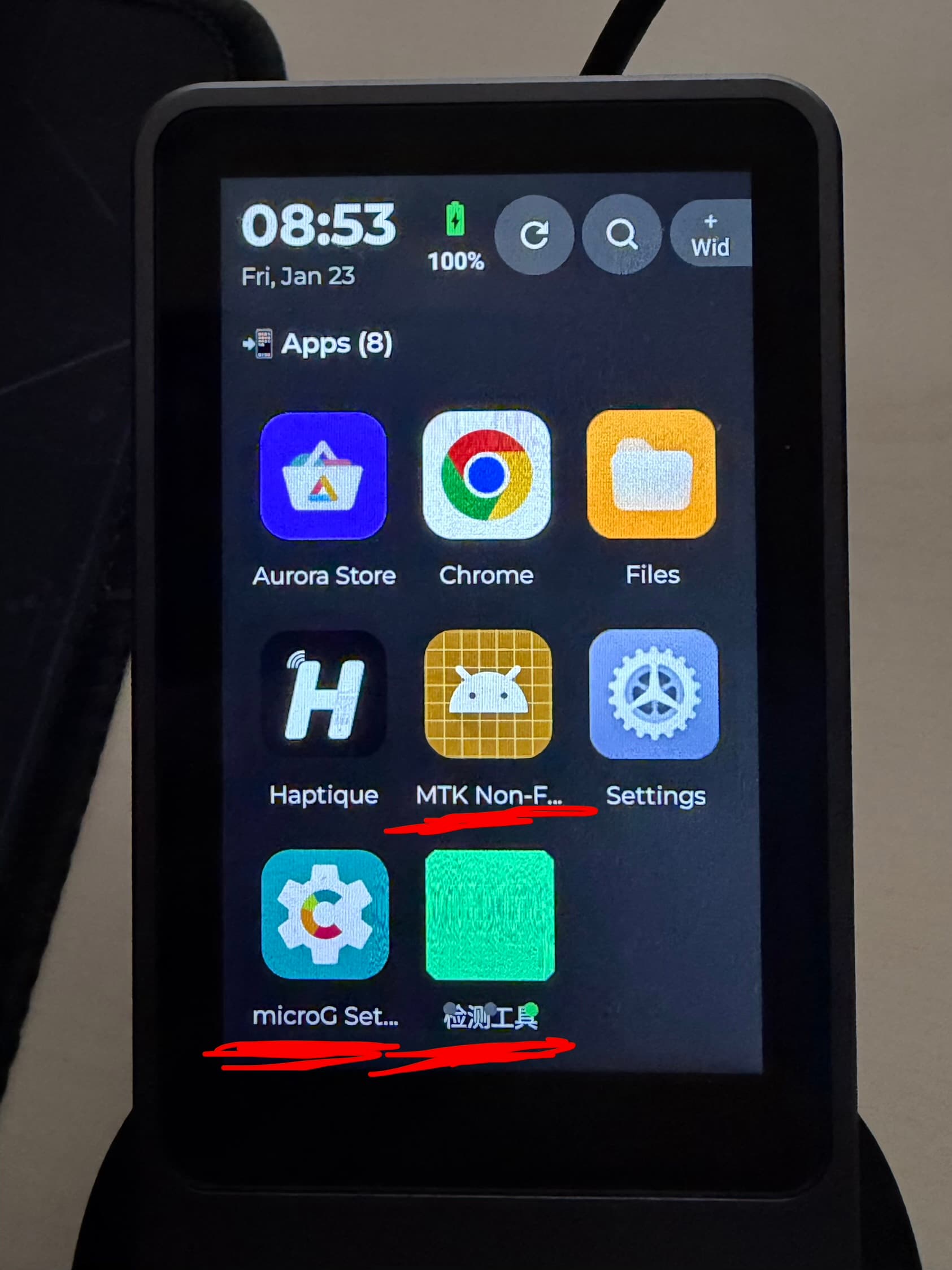
have some strange preinstalled apps

The green app is testing app for buttons and LCD test done in QC. MicroG is alternative to Google services. MTK is the chip providers app(Mediatek). You need to keep MicroG because that the Google services runs on Android like apps. Don’t remove MicroG rest two you may delete.

DMnus your login ID.